
Understanding UI/UX Design
Introduction to UI/UX Design
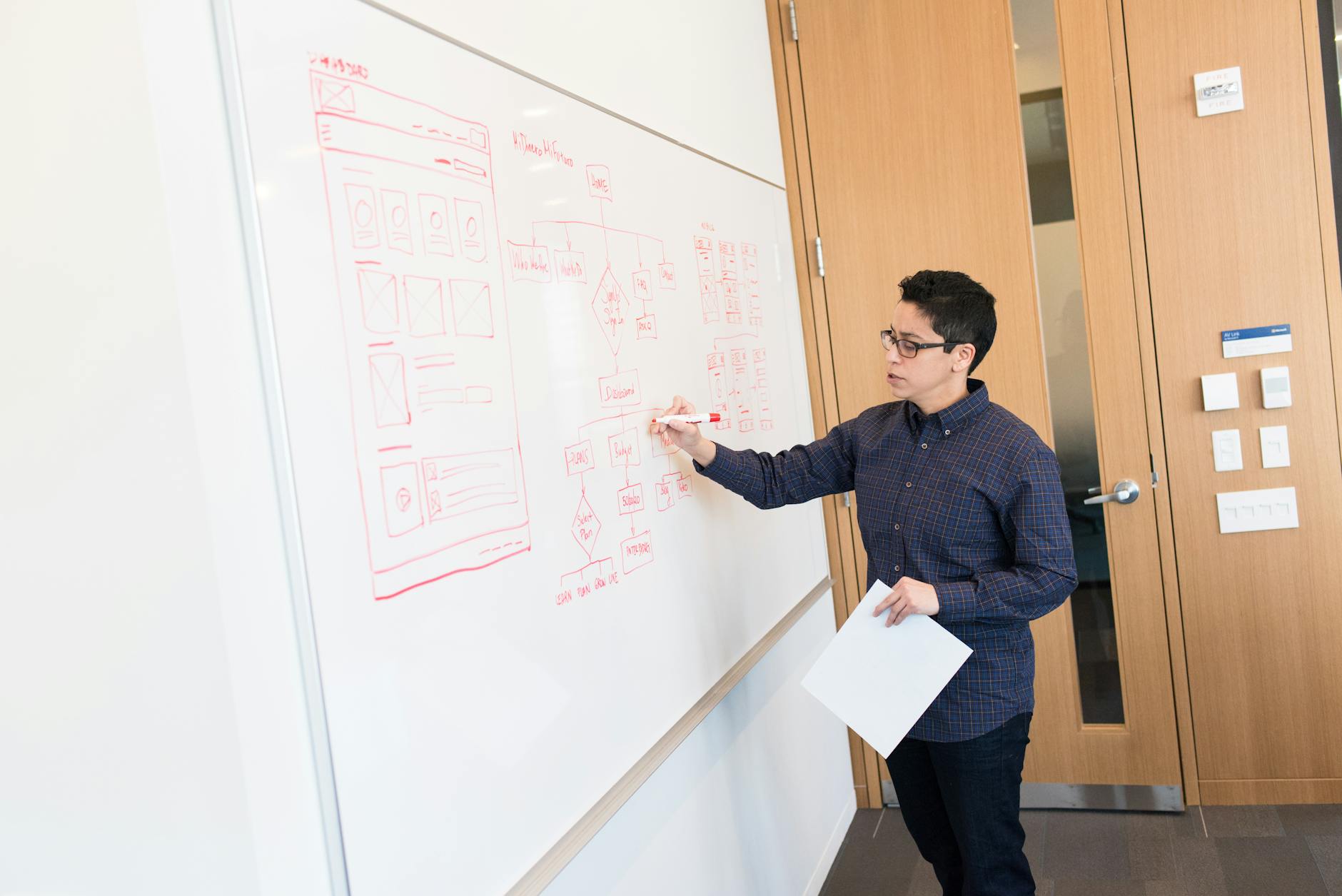
UI (User Interface) and UX (User Experience) design are crucial ingredients when cooking up digital products and services. UI design is all about the visual jazz—buttons, screens, and icons you click, tap, or poke. It needs to look good and feel right, making your experience as smooth as a hot knife through butter. UX design, on the other hand, is like the whole experience you’re having while using that app or website. We’re talking nerdy stuff like user research, personas, playing around with wireframes, and trying prototypes—it’s all about making the user’s journey a breeze. Both UI and UX are lifelines for a flawless ride from start to finish (Webflow). Want to dig more into how it all works? Check out our guide on ui/ux design process steps.
Importance of User-Centric Designs
Putting the user in the driver’s seat is key for skyrocketing engagement and boosting business. It’s all about crafting experiences that users find second nature while hitting the sweet spot between brand vibe and user expectations. To get this right, you need to peek into the users’ heads—what do they need and want? Kick off with things like user research, sketches, trial runs, nailing down who your users are, and make sure the experience is slick. Stick with these principles, and you’ll have users sticking around like bees on honey (Kara Digital). For more juicy details, check our section on user-centered design methods.
Psychology in UX Design
Designers love to play mind games. They use psychology to shape experiences that not only work but charm. Each click, swipe, or tap is planned to subtly steer folks in the right direction. Take the Halo Effect, for instance—a single glowing aspect of a site can make a lasting splash, changing how users feel and act (Halo Lab). It’s also wise to keep sign-in or sign-up steps as clear as day and never hide features in sneaky corners (Halo Lab). Want the full scoop on these tips? Visit our piece on ui/ux design best practices.
| Principle | Description |
|---|---|
| Halo Effect | A single feature leaving a lasting mark—good or bad |
| User-Friendly Sign-In | Making the login game as simple as ABC |
| Negative Ion Emission | No more frizz, just smooth sailing |
Get these elements right, and both business goals and user expectations get what they came for—a digital product that rocks. To keep tabs on the newest trends and tools, don’t miss our article on top ui/ux design trends.
Decision-Making Strategies in UX Design
Figuring out how decisions come together in UI/UX design project management can make a world of difference in what’s produced. We’ve got two main decision paths: non-compensatory and compensatory. Plus, there’s this thing called the halo effect that often nudges things along.
Non-Compensatory Decision Making
Non-compensatory decision-making is all about quick cuts. If something doesn’t tick the right boxes, it’s outta there, no questions asked. This method is like speed dating for design choices — make a fast judgment and move on (Halo Lab).
Example Criteria for Non-Compensatory Decision Making:
- User Interface Simplicity: Kiss complicated designs goodbye.
- Load Time: Slowpoke designs get the boot.
- Mobile Responsiveness: If it doesn’t look good on your phone, it’s out.
Compensatory Decision Making
Compensatory decision-making likes to weigh things up. It’s the pro-and-con list-maker, always looking for that sweet spot where everything balances out. Here, all the little details matter (Halo Lab).
Factors Considered in Compensatory Decision Making:
- Aesthetic Appeal: Does it catch your eye?
- Functional Usability: Is the interface a breeze?
- Compatibility: Plays nice with all gadgets and browsers?
| Decision-Making Strategy | Process | Example Criteria |
|---|---|---|
| Non-Compensatory | Quick elimination based on essentials | Simplicity, Load Time, Mobile Responsiveness |
| Compensatory | Weighs pros and cons for balance | Aesthetic Appeal, Functional Usability, Compatibility |
Influence of the Halo Effect
The halo effect’s like judging a book by its cover. An initial good vibe can color how we see everything else. In UI/UX, a snazzy homepage can make us expect the whole site is just as cool (Halo Lab).
Using these decision-making strategies can spice up the design process:
- For user-friendly designs, put on some flair upfront to work that halo effect magic (user-centered design methods).
- Mix up non-compensatory and compensatory strategies for decisions that are quick yet thoughtful.
Hankering for more UX wisdom? Check out our guides on ui/ux design best practices and keep up with top ui/ux design trends.
Best Practices in UX Design
Nailing the core principles of UX design can make users wanna stick around and actually enjoy their time on your site. We’ll focus on three main things: making sign-in processes a breeze, hitting that sweet spot between choices and simplicity, and designing with user intentions in mind.
Simplifying Sign-In Processes
Nobody likes jumping through hoops just to see their online content. Make getting into accounts quick and painless. Keep it simple, so users ain’t silently cursing your name while struggling with too many steps or hidden buttons (Halo Lab).
Keep these tips in mind:
- Offer sign-up via social media or email.
- Cut down the info you need to the bare minimum.
- Use obvious pointers to guide folks through signing in.
| Sign-In Method | Ease of Use | User Preference (%) (Survey Data) |
|---|---|---|
| Email and Password | Easy | 45% |
| Social Media Login | Very Easy | 30% |
| Multi-step Sign-Up | Moderate | 15% |
| Phone Number Verification | Easy | 10% |
Balancing Choices and Simplicity
Bombard someone with too many options, and watch them freeze like a deer in headlights. On the flip side, give ’em too few and they’re left wanting more (Halo Lab).
Here’s what works:
- Don’t clutter a single page with too many options.
- Group similar choices together for easy scanning.
- Label everything so clearly even your grandma will get it.
Want more on keeping it simple while offering choice? Check out our ui/ux design best practices.
Designing for User Goals
If your design ain’t speaking to what users really want, you’re missing the mark. Let’s bridge that gap between what users are after and what they experience.
Ways to do it:
- Dive into user research and find out their desires.
- Set goals that are clear and reachable.
- Create feedback loops to keep improving.
| Goal | User Need | Key Design Element |
|---|---|---|
| Quick Sign-In Access | Ease of Access | Simplified Sign-In Forms |
| Product Discovery | Efficient Navigation | Clear, Concise Navigation Menus |
| Effective Decision Making | Reduced Cognitive Load | Minimalistic Design |
For aligning designs with user wants, swing by our user-centered design methods. And don’t forget to keep tabs on top ui/ux design trends to stay sharp.
By sticking to these practices, you can craft experiences that thrill users and hit business goals. For more on mastering UI/UX, check out our ui/ux design process steps and ui/ux design case studies.
Design Project Management Essentials
When it comes to mastering the art of UI/UX design project management, there’s a mix of down-to-earth skills, handy frameworks, nifty methods, and trusty tools that get the job done right and on time.
Skills for Design Project Managers
If you’re thinking about what makes a good design project manager, it’s all about having the right skills to lead a UI/UX project through all its phases:
- UX Design Know-How: Getting the hang of user experience design is top-of-the-list for making sure the project meets what users wanna see and use.
- Tech Savvy: Understanding the nuts and bolts of design and development is key to jiving with the folks writing the code.
- Talking the Talk: Having a knack for clear chit-chat keeps team members, stakeholders, and clients on the same page.
- Leadership Mojo: Being a motivating force that propels the team and meets project targets.
- Resource Juggling: Balancing time, money, and manpower like a boss to hit those goals.
| Skill | What’s it About |
|---|---|
| UX Design | Making sure the project’s a win for users |
| Tech Savvy | Teaming up smoothly with developers |
| Talking the Talk | Keeping communication crystal clear |
| Leadership Mojo | Pushing the team and getting things done |
| Resource Juggling | Smart handling of all resources |
Check out more juicy details on these skills over at UXPin.
Frameworks and Methods
Choosing the right framework or method sets a solid foundation for design projects. Popular project frameworks in UI/UX design include:
- Agile: Think of it as doing things bit by bit with teamwork, customer input, and quick turns.
- Scrum: A part of Agile, Scrum has projects broken into “sprints,” where every short, fixed stretch is about hitting a certain goal.
- Kanban: Like a visual task organizer that helps you see and improve the workflow.
- Lean UX: All about the end-user, with fast testing and learning.
- Waterfall: A step-by-step way to tackle projects, one phase leads neatly into the next.
| Framework/Method | What It’s Like |
|---|---|
| Agile | Split into parts, total teamwork vibe |
| Scrum | Goal-focused with those sprint runs |
| Kanban | Task organization at a glance |
| Lean UX | Quick tests, all eyes on the user |
| Waterfall | Follow-through from A to Z |
Get the full scoop on these approaches over at UXPin (UXPin).
Essential Tools for Design Projects
To make sure the wheels spin smoothly on UI/UX design projects, teams deploy a range of tools that cover all bases:
- Project Management Tools: Stuff like Trello, Asana, and Jira keeps tasks, workflows, and progress all neatly tracked.
- Whiteboarding & Idea Spinners: Apps like Miro and MURAL are great for brainstorming and getting your ideas clear on a board.
- User Research & Testing Tools: Platforms such as UserTesting, Lookback, and Hotjar let you gather user insights and test usability.
- Team Chit-Chat Tools: Slack and Microsoft Teams make team chats and collabs a breeze.
- Design & Prototyping Tools: Figma, Sketch, and Adobe XD help craft design samples and draw in feedback.
| Tool Type | Names to Know |
|---|---|
| Project Management Tools | Trello, Asana, Jira |
| Whiteboarding & Idea Spinners | Miro, MURAL |
| User Research & Testing Tools | UserTesting, Lookback, Hotjar |
| Team Chit-Chat Tools | Slack, Microsoft Teams |
| Design & Prototyping Tools | Figma, Sketch, Adobe XD |
These tools get a further breakdown over at UXPin.
Each of these pieces fits snugly into the puzzle of managing UI/UX design projects. For more on the whole design journey, including specific project parts, check out our reads on ui/ux design process steps and related goodies.
Managing UX Design Projects
Five Stages of Project Management
Handling a UX design project means being the captain of the ship through the entire creative process. You’ll be doling out resources, divvying up tasks, setting clear goals, and keeping the folks in charge in the loop. It’s all about making things tick smoothly (UXPin). Here’s what the journey involves:
| Stage | What’s Happening |
|---|---|
| Project Initiation | Scope the project, spot the stakeholders, lay down some early goals, outline what you’re gonna deliver |
| Project Planning | Craft a detailed plan, sort out a timeline, spread the resources around, set those big checkpoints |
| Project Execution | Get cracking on tasks, keep talking, shuffle resources as needed, stick to the game plan |
| Project Monitoring | Keep an eye on things, manage the hiccups, make sure quality’s on point, update the stakeholders |
| Project Closure | Wrap up the deliverables, get thumbs-up from stakeholders, hand over the reins, jot down lessons |
Every step’s a biggie for ensuring things run like clockwork. Check ui/ux design process steps to dig deeper into each sweet spot of the process.
Importance of Clear Goals
Having crystal-clear goals is like having a treasure map for your UX design project. It helps everyone speak the same language—teams and clients alike—and keeps things from spiraling into chaos (LinkedIn). They lay the groundwork for a smooth ride through the project. Peek at user-centered design methods for some savvy goal-setting tips in UX design.
Effective Team Collaboration
Nailing that team vibe is crucial when you’re juggling multiple projects—a usual day at the office for designers! Being organized, knowing what matters first, and switching gears without breaking a sweat ensures nothing slips through the cracks (LinkedIn).
Designers rely on a heap of tools to keep the groove going and make sure the workflow sails smoothly:
| Tool Type | Examples | Purpose |
|---|---|---|
| Project Management | Jira, Asana | Define tasks, manage workflows, track progress |
| Communication | Slack, Microsoft Teams | Chat, teamwork |
| Whiteboarding & Brainstorming | Miro, Lucidchart | Kick off ideas, brainstorm |
| Design & Prototyping | Figma, Sketch | Create designs, prototype |
| User Research & Testing | UserTesting, Lookback | Test with users, do some research |
Want to amp up your project mojo? Check out our ui/ux design best practices and interactive website design ideas.
By working these tools and tactics into your routine, UX design teams create a space buzzing with collaboration that drives projects to the finish line. For real-world examples of how these play out, swing by our ui/ux design case studies.
Enhancing UX Design Project Management
Leveling up in managing UX design projects is all about making things work smoothly and keeping users in mind. Let’s break down how staying sharp on trends, listening to feedback, and using the right gear can lift your game in UX design.
Staying Updated with Trends
In the crazy fast-moving world of UX design, if you’re not up-to-date, you’re losing pace. UX pros need to catch the latest buzz to make sure what they create hits the mark. This means diving into blogs, catching webinars, joining workshops, and even hitting the books for courses.
Key places to find the good stuff:
- Top UX design trends
- Webinars and workshops from the go-to design gurus
- Blogs and articles shared by the industry whizzes
Keeping tabs on these trends means your projects won’t just meet expectations—they’ll smash them.
Learning from Feedback
Feedback—it’s like gold dust for sprucing up UX design project management. Gathering feedback lets you test your ideas, see where the glitches are, and check how your choices impact the end game. You can get feedback through stuff like surveys, chin-wags (interviews), watching users in action (usability testing), and peeking at analytics.
| Method | Use Case |
|---|---|
| Surveys | Getting the lowdown on what users dig |
| Interviews | Digging deeper into user feelings and thoughts |
| Usability Testing | Watching users get hands-on with the design |
| Analytics | Keeping an eye on how users click and scroll |
Keeping feedback in the loop helps UX crews make choices that keep users smiling and get the project engine humming. Check out more about user-centered design methods and ui/ux design best practices for tips on nailing feedback integration (LinkedIn).
Leveraging Technology and Tools
Picking the right tools can make your UX design management as smooth as butter. From start to finish, these tools keep your workflow slick and the team on the same page.
Here are some must-haves:
| Tool Type | Example |
|---|---|
| Design Software | Adobe XD, Figma |
| Prototyping Tools | InVision, Sketch |
| Project Management | Trello, Asana |
| Collaboration Tools | Slack, Miro |
Tools like these let teams crush tasks, chat easily, and keep everything rolling.
If you’re hungry for more UX design management wisdom, dig into the ui/ux design process steps. Also, eyeballing ui/ux design case studies and ui/ux design portfolio examples can dish out real-world examples and solid practices.